Sometimes a situation arises where a client notices a poor connection to their server. If this happens, the first thing to check is packet loss.
Usually, the first step is to open the command line and enter the command # ping server_ip, but there is a way that shows the situation more clearly.
Checking packet loss by country
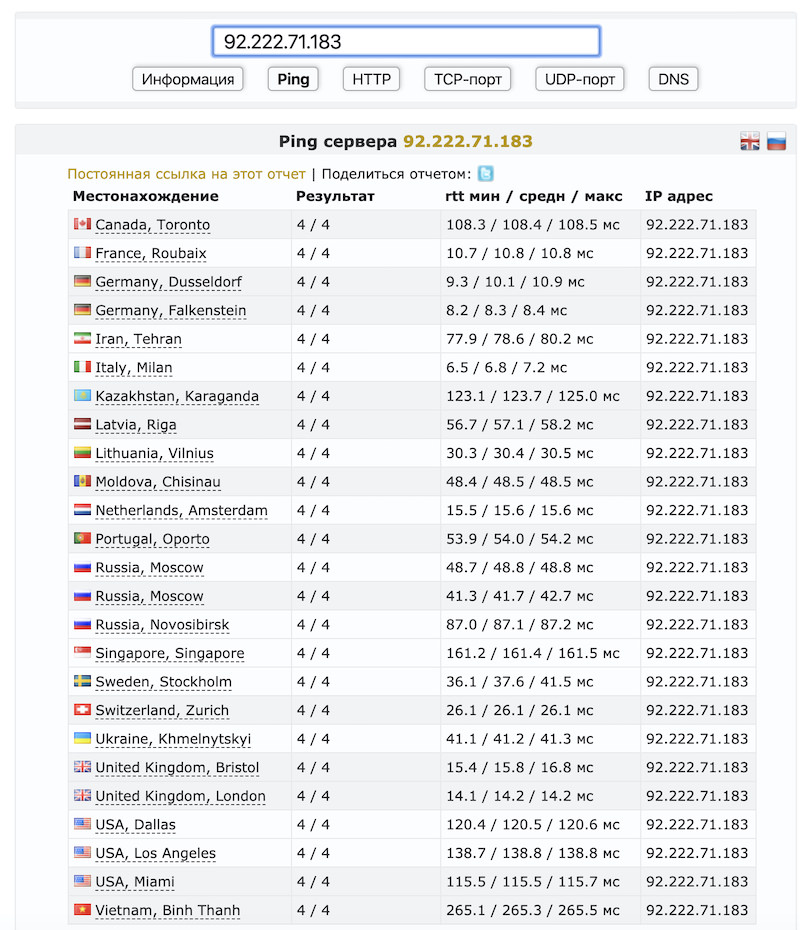
Let's check whether there is packet loss from different countries, as well as the connection time to the server. As an example, we will use the service: https://check-host.net/?lang=ru
Go to the check-host website and enter our IP address in the field; in this example we can see there is no packet loss:
Installing mtr on different operating systems
For a more detailed analysis of the possible problem, we will use the MTR utility. This utility sends a specified number of packets to a remote server and shows the amount of loss (if any) at each hop.
For CentOS Linux:
# yum install mtr
For Debian/Ubuntu Linux:
# apt-get install mtr-tiny
For Windows operating systems, you can go to google, type winmtr in the search, and download the installer from any of the suggested sites.
Step-by-step network diagnostics for packet loss
For a proper test, the mtr command should be run in both directions with at least 100-200 packets.
An example Linux command for testing and sending 100 packets:
# mtr -s 1500 -r -c 100 -i 0.1 178.132.1.64
or
#mtr -r -c 200 google.com
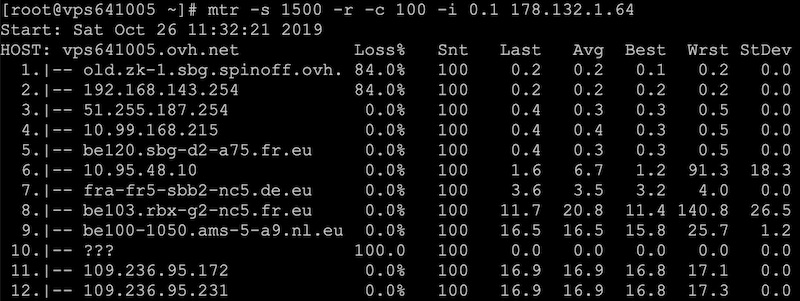
In the very last line we see that 100 packets were sent (Snt) and 100 packets were received without loss (Loss%).
Lines 1, 2 and 10 show losses of 84% and 100%. These are intermediate hops that pass all traffic through but may not answer ICMP requests. Everything is fine here, since no losses were detected at the following hops.
- Loss% — percentage of lost packets;
- Snt — packets sent;
- Last — latency of the last sent packet in milliseconds;
- Avg — average packet latency;
- Best — minimum packet latency;
- Wrst — maximum packet latency;
- StDev — standard deviation of the latency.
The mtr utility works on a similar principle under Windows; the only difference is the graphical interface.